Master GuntherBot.
Straightforward guides to install, configure and use every tool inside Discord.
Automatic Installation
GuntherBot supports multiple game worlds through dedicated Discord integrations. Start from the official world card on the Home page so the correct bot and data provider are selected.
Here are the simple steps to get started:
- Authorize on Discord: Use the official world card. The current official invite requests Administrator because the automatic setup creates and manages operational channels and roles. Review the permission screen and authorize only the official GuntherBot application.
- Automatic Setup: Once authorized, the selected world integration prepares the GuntherBot category and required operational channels.
- Activation and onboarding: Open the billing channel created by the bot and use Renew now to generate the Pix QR code and copy-and-paste code.
- Automatic activation: Complete the Pix payment in your bank app. GuntherBot verifies it through Mercado Pago and activates the features included in the selected plan.
Why choose Mystic Scan?
The scan plan prioritizes speed and simplicity for player research and activity analysis.
- Instant Deployment: Zero configuration files, zero API credentials to copy. Just click, authorize, and run.
- AI Player Scanner: Evaluates activity signals to identify possible links between characters. Availability depends on the selected world integration.
- Automated Billing: Pix payment with automatic confirmation, reducing manual activation and Discord verification delays.
Introduction
GuntherBot brings player intelligence, guild operations, trackers and war tools to Discord through integrations dedicated to each supported world.
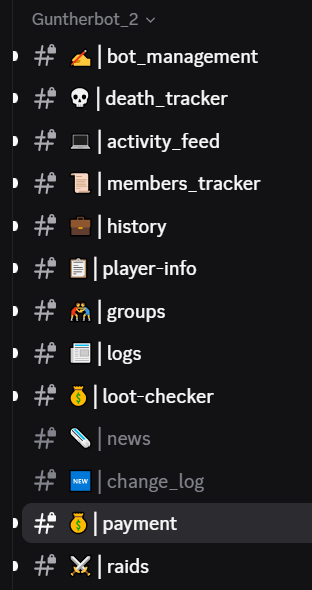
Most workflows use buttons and forms inside dedicated channels. The sections below explain each area.
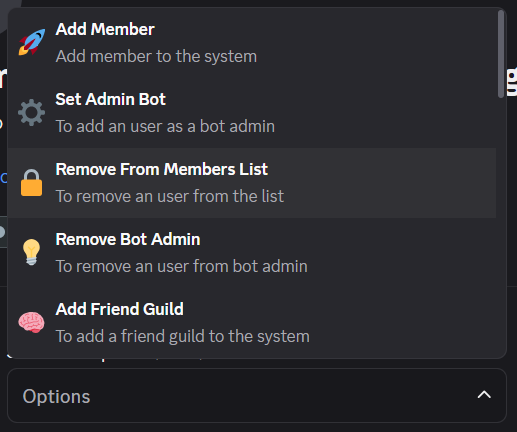
Start in the bot_management channel, which centralizes the administrative actions:
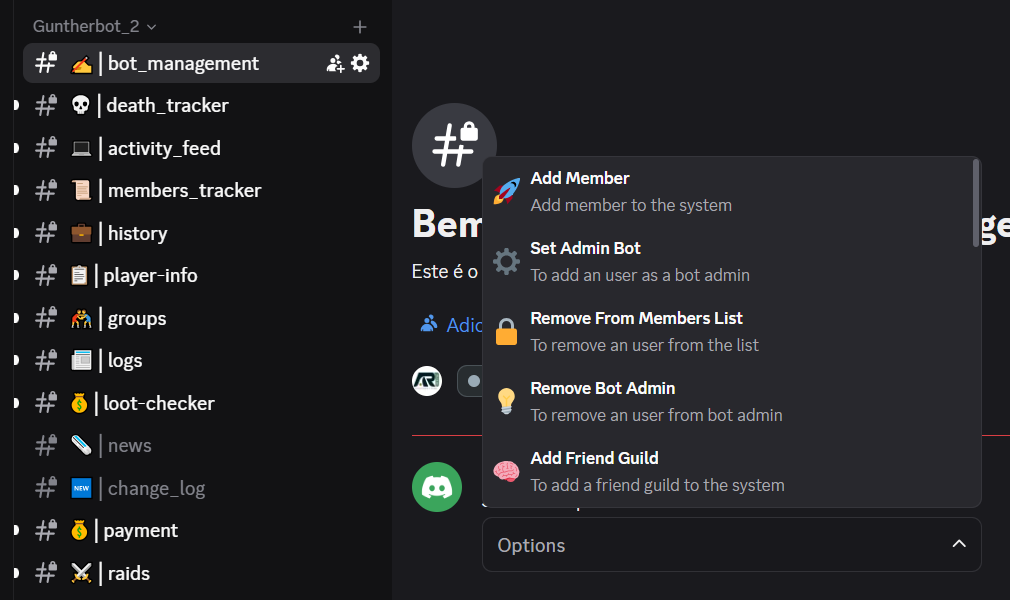
Add Member
Use Add Member to link a character from the selected world to a Discord user, mark the main character and optionally define the display prefix used on this server. Tracked members appear in the Members Tracker channel.

Remove From Member List
Remove From Member List removes a tracked member. This action requires the Bot Admin role.
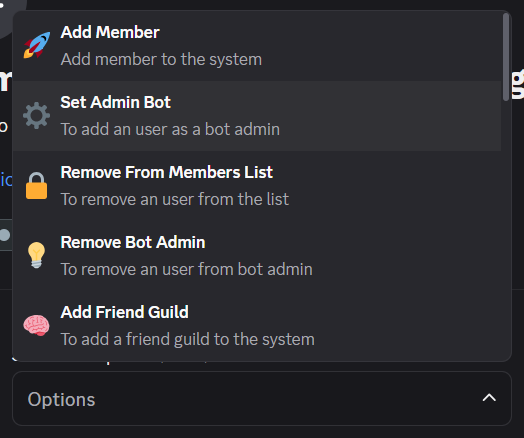
Set Admin Bot
Use Set Bot Admin to delegate GuntherBot management tasks to a Discord user. Bot administrators can perform actions such as adding or removing monitored members without receiving broader Discord server permissions.
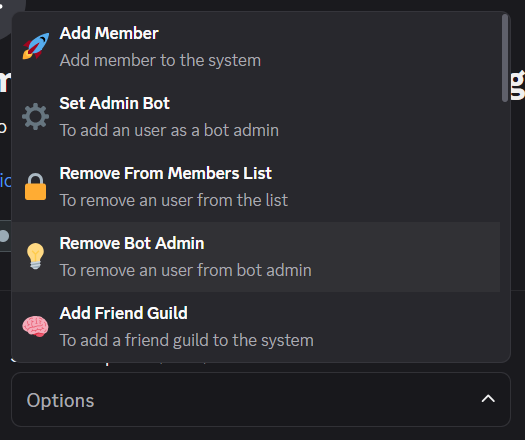
Remove Bot Admin
Remove Bot Admin revokes GuntherBot administrative access from the selected Discord user.
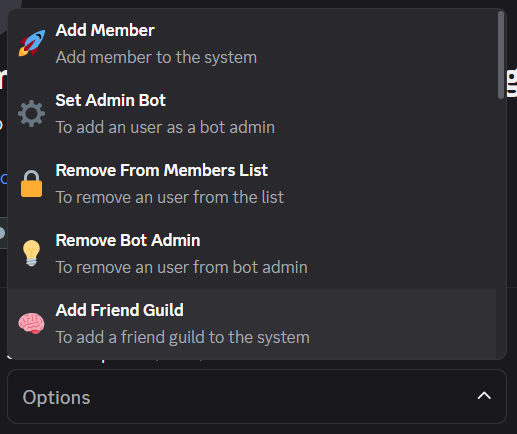
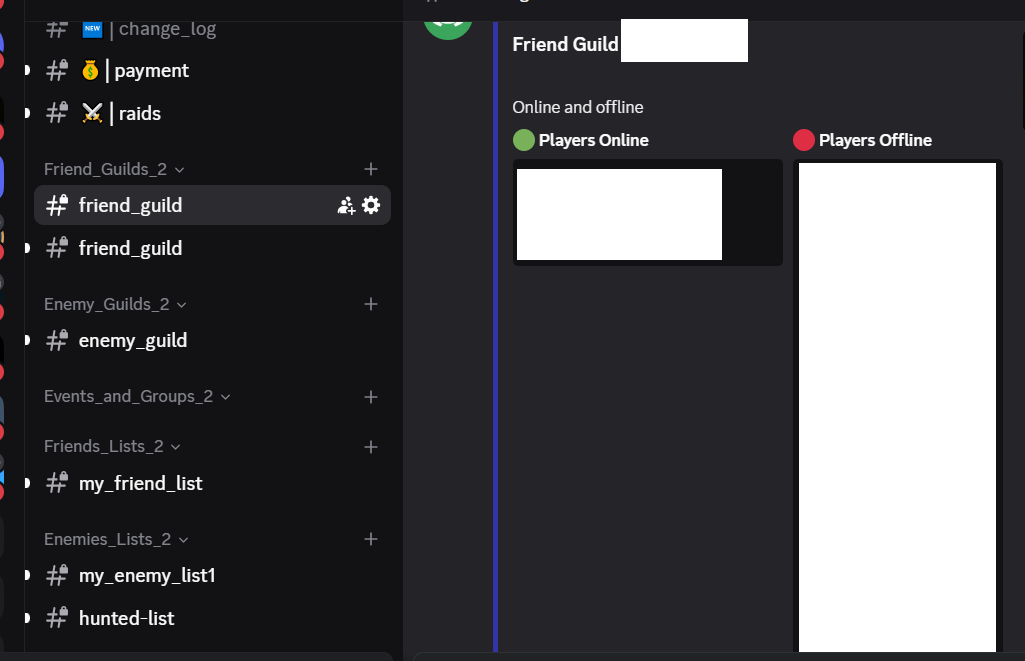
Add Friend Guild
Use Add Allied Guild to monitor a guild as an ally. GuntherBot groups its activity in the allied guilds category.
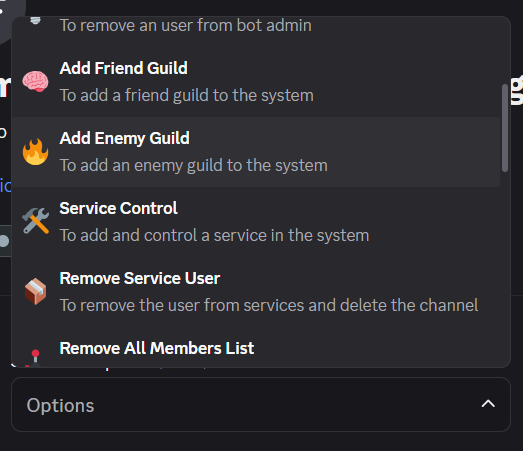
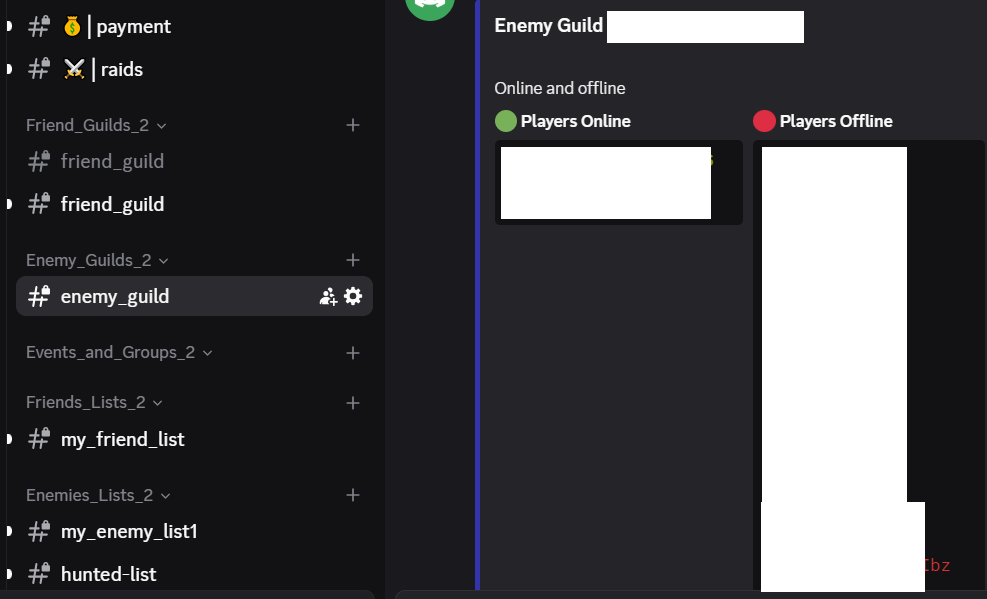
Add Enemy Guild
Use Add Enemy Guild to monitor a guild as an opponent. GuntherBot groups its activity in the enemy guilds category.
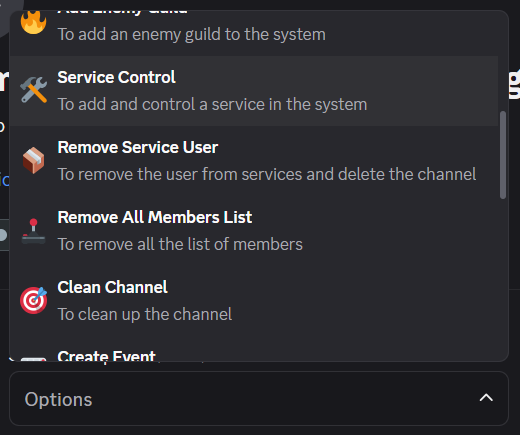
Service Control
Use Service Control to create an operational service channel and assign the Discord user responsible for managing it.
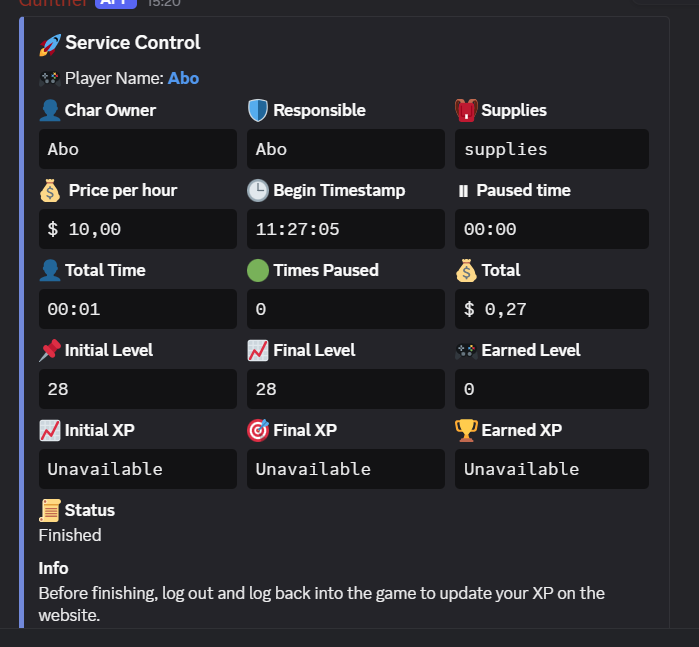
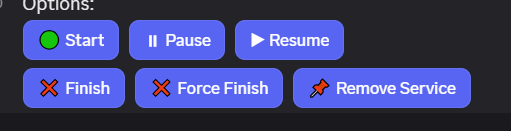
Button controls, 'Start': to initiate the service, 'Pause' to pause a service, 'Resume' to resume a service, when pause the timer stop counting, 'Finish': to terminate a service and the calculations will be done, 'Force Finish': to force an end of service, 'Remove Service': to delete the service from the system, the channel shows an embed with 'Char Owner', 'Responsible', 'Supplies', 'Price Per Hour', 'Begin Timestamp', 'Paused Time', 'Total Time', 'Times Paused', 'Total', 'Initial Level', 'Final Level', 'Earned Level', 'Initial XP', 'Final XP', 'Earned XP'
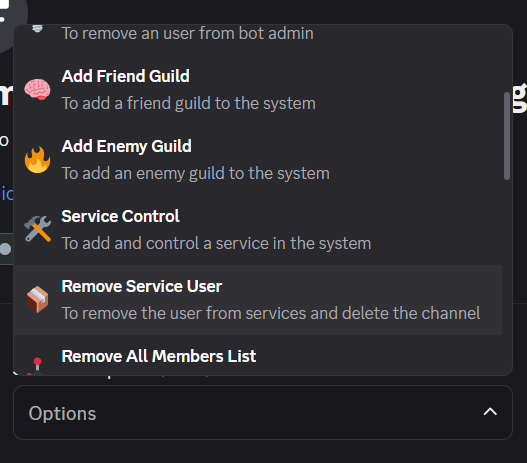
Remove Service User
Remove Service User removes the Discord user assigned to the selected service.
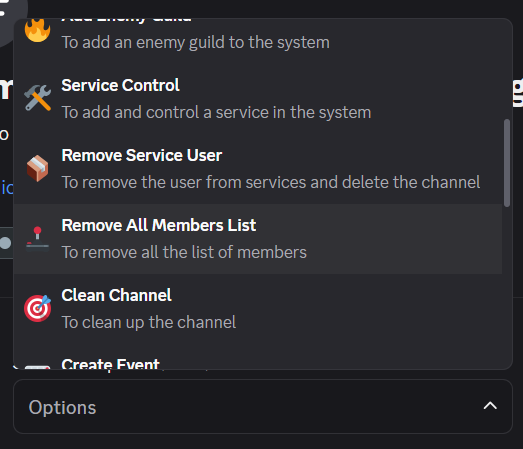
Remove All Members List
Remove All Members clears the monitored member list after confirmation.
Clean Channel
Clean Channel removes the operational messages from bot_management.
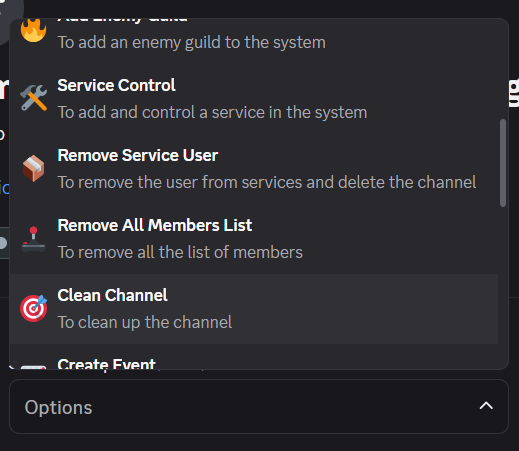
Create Event
Create Event asks for the event name, participant limit, price per participant, responsible Elite Knight and minimum level, then creates a channel in the events category.
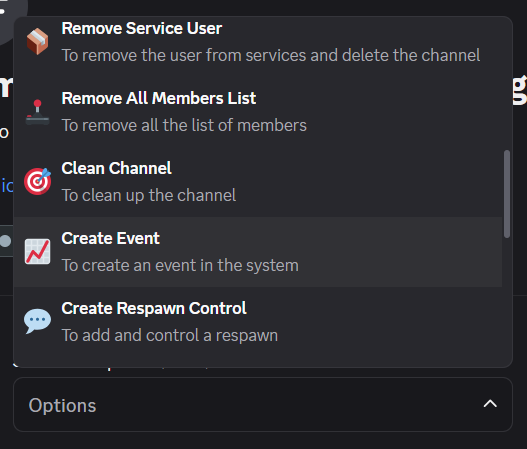
Control Buttons, 'Join Event', to enter the event, 'Define the date and hour of the event', to set the event date, 'Set as finished the event', to terminate an event, 'Add Guest', to allow any user to enter the event, 'Add player to event', to add a member to the event, 'Remove player from event', to remove a player, 'Set event started', to initiate the event
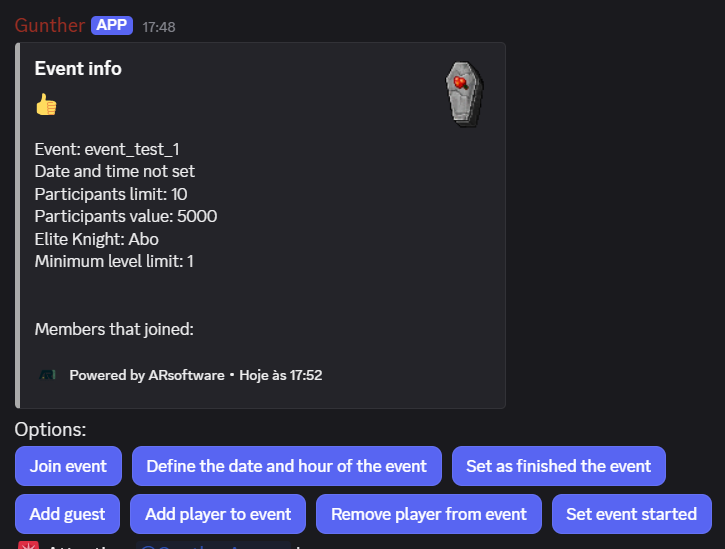
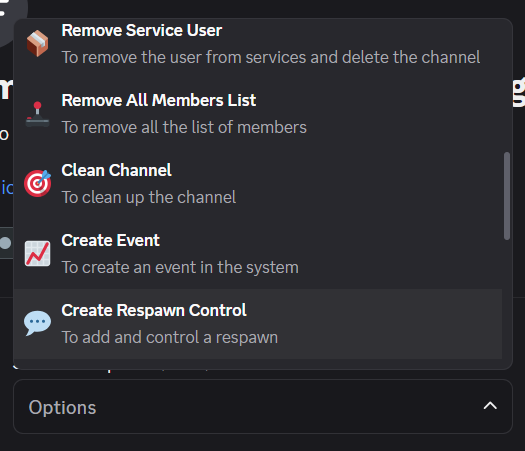
Create Respawn Control
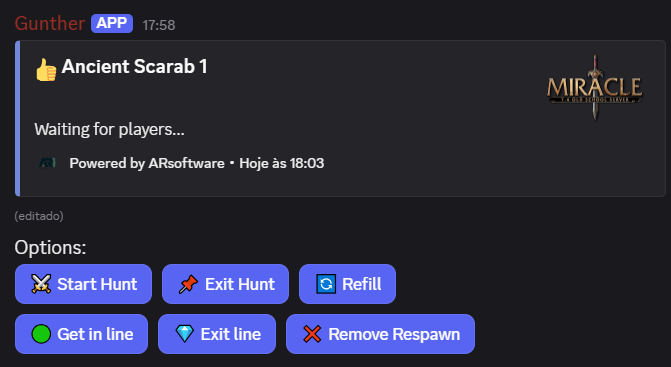
Create Respawn Control creates a dedicated queue channel for the respawn selected in the respawns channel.
Control buttons, 'Start Hunt', to initiate the hunt, 'Exit Hunt', to exit the respawn and allow other to start the hunt, 'Refil', to get some time to refil, the timer is paused, 'Get in line', to enter the line to hunt, as soon it is you time to play the respawn will inform you, 'Exit Line', to abandon a hunt and allow others to hunt, 'Remove Respawn', to remove the channel and stop the respawn
Friend/Enemy/Hunted Lists
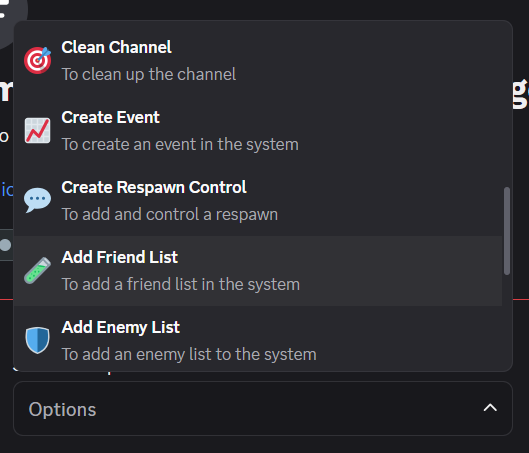
Create a friend list by defining its name; GuntherBot uses the same name for the generated channel.
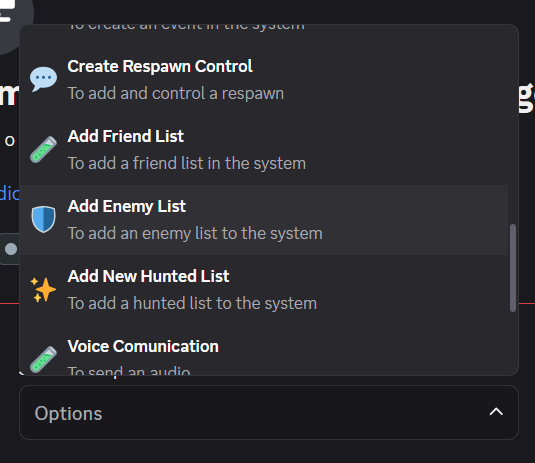
Create an enemy list by defining its name; GuntherBot uses the same name for the generated channel.
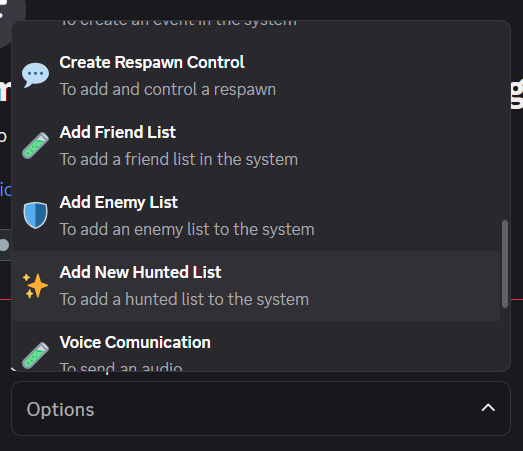
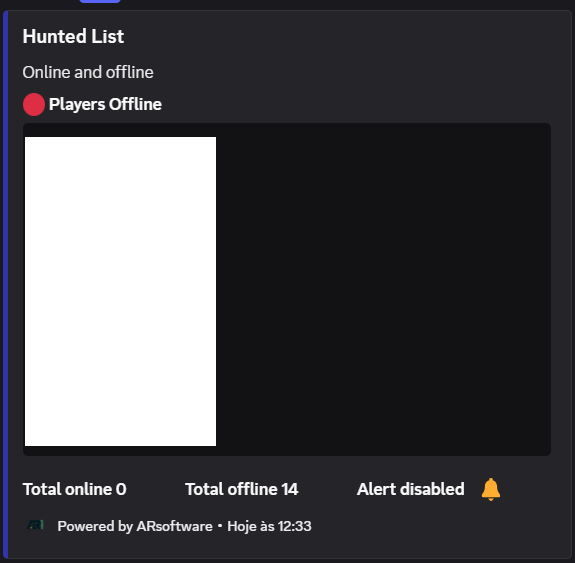
Create a hunted list by defining its name. GuntherBot creates a channel with the same name and publishes the monitored targets in an embed.
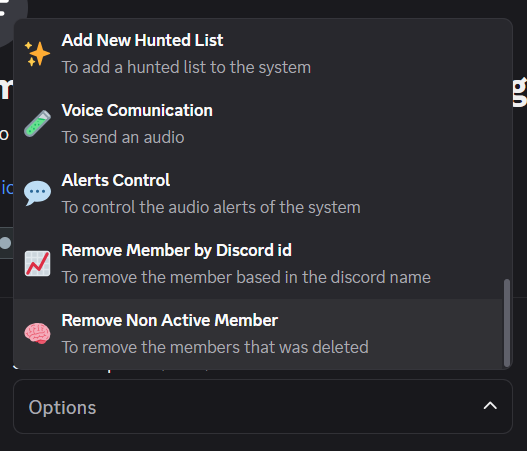
Audio Messages / Alerts
To send an audio alert, enter the message and choose the English or Portuguese voice.
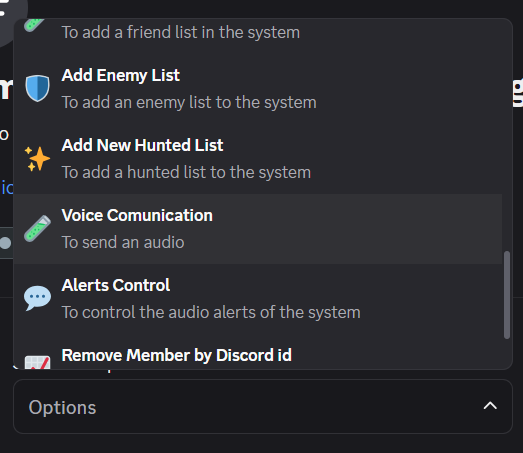
'Alerts Control', it will enable and disable the alerts of the system, 'Change Name Alert', it will enable or disable the change name alert, 'Member Track Alert', it will enable or disable the alert for the members that are tracked, 'Ban Alert', it will enable or disable the ban alert
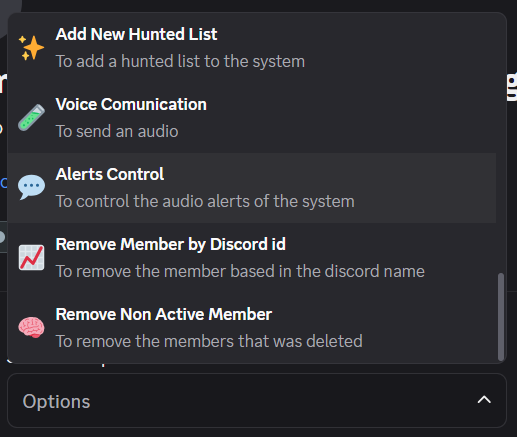
Remove Member by Discord ID removes a monitored member using the linked Discord user ID.
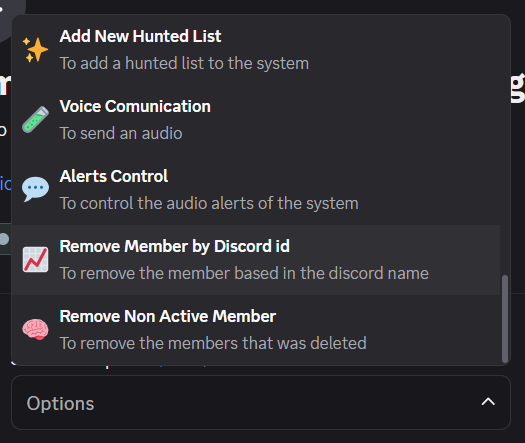
'Remove Non Active Member', it will remove the members that was deleted
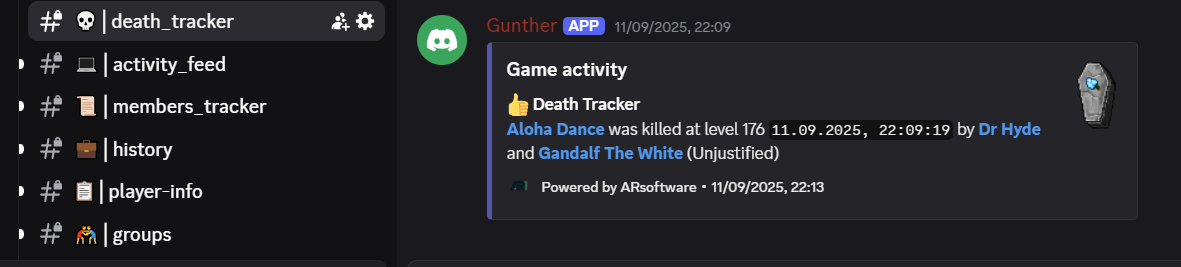
Death Tracker
Death Tracker reports allied and enemy deaths, including date, time and killer, with periodic updates.
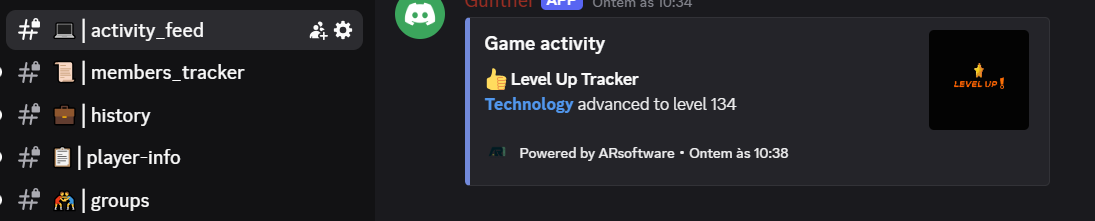
Activity Feed
Activity Feed centralizes level changes, name changes and other relevant events for monitored players.
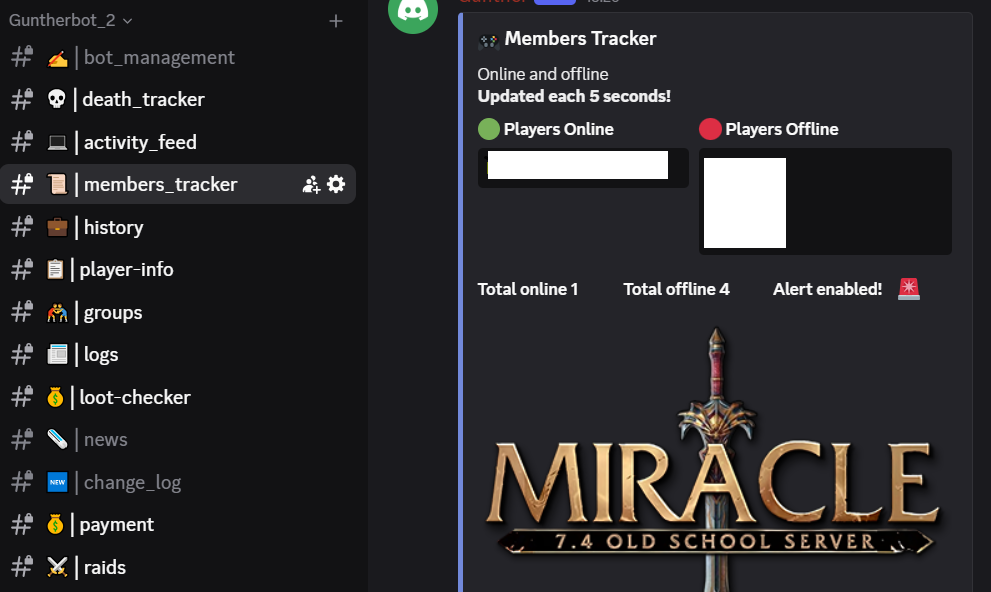
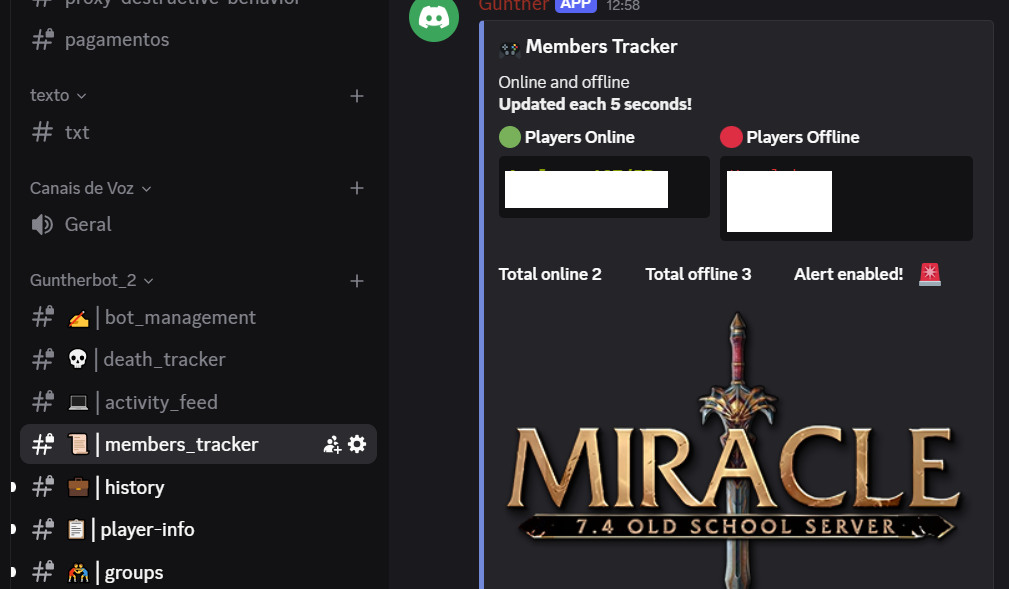
Members Tracker
Members Tracker lists monitored players, shows their online status and lets Bot Admins enable or disable alerts.
History
History provides death, frag, level and name-change records for the selected player.

Player-info
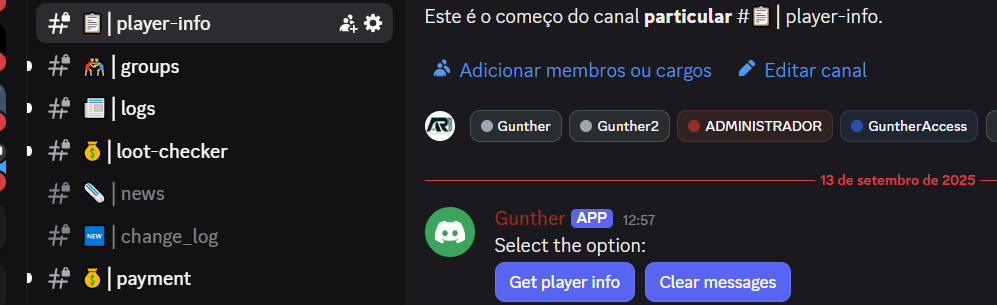
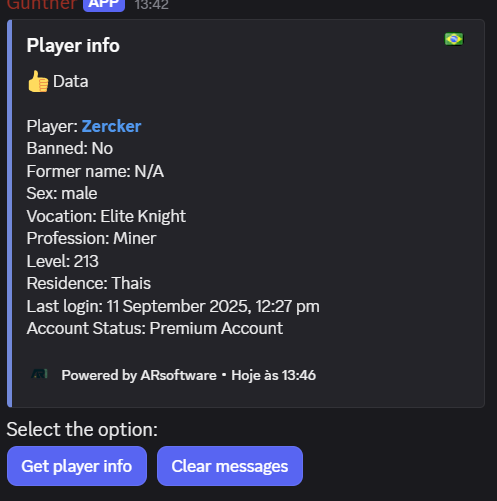
Player Info shows the available profile data for the selected character. Use Clear Messages to reset the channel output.
Groups
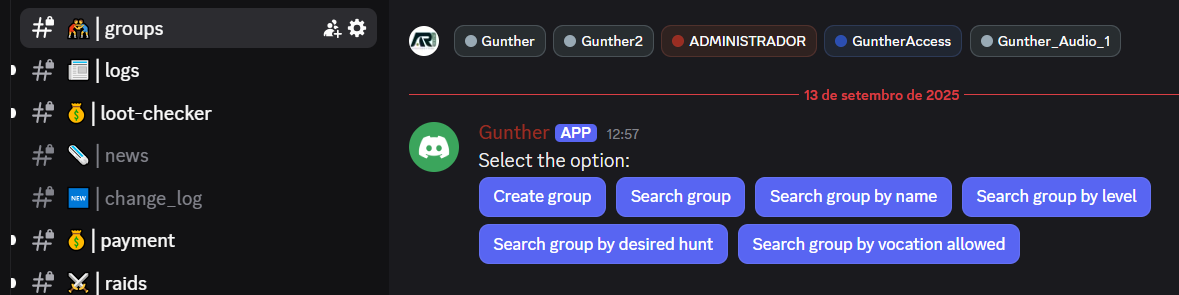
Channel Groups: In this channel you can control a Group entry, the buttons for this channel are: 'Create Group' to create the group, 'Search Group', to search for a group in the system, 'Search Group by Name', to search for a group using the name, 'Search Group by Level', to search for a group using the level selected, 'Search Group by desired hunt', to search the group using the desired hunt, 'Search Group by vocation allowed', to search the group using the vocation
Logs
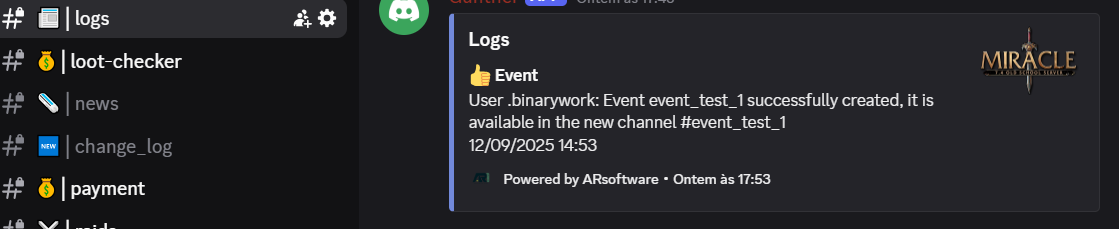
Logs records GuntherBot activity, including tracker updates and created events or groups.
Loot-checker
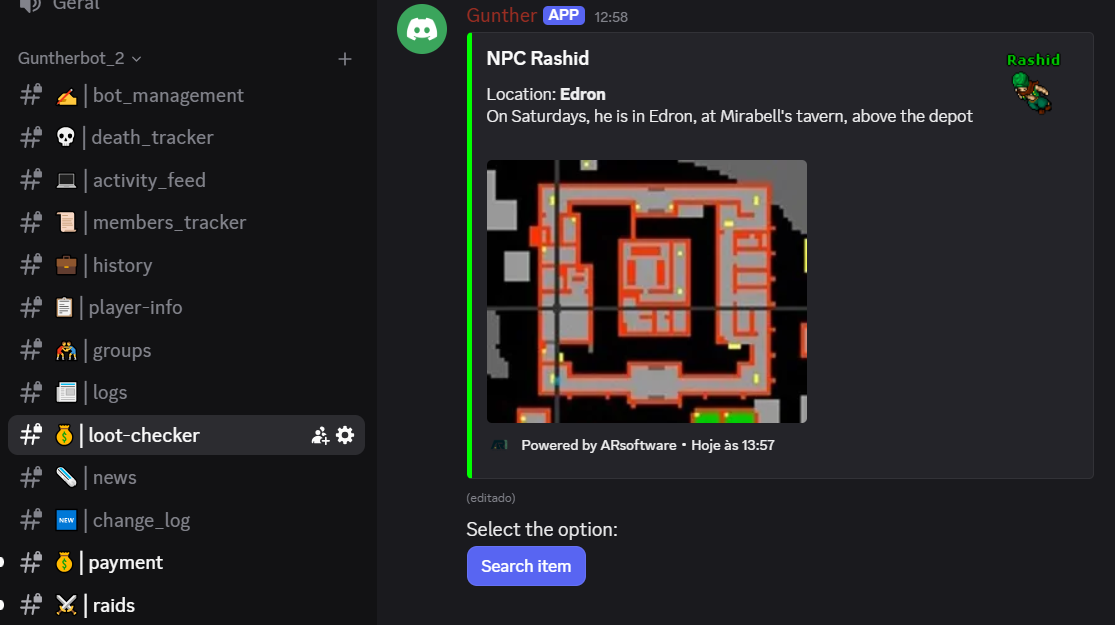
Loot Checker searches items from the selected world and displays the available description and value data in an embed.
Payment
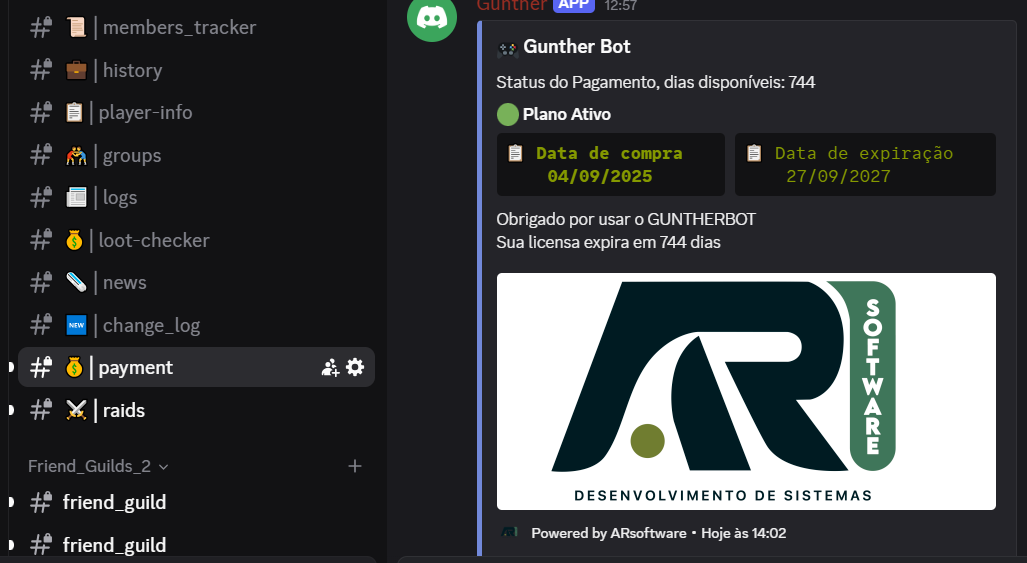
Payment shows subscription status and provides Renew Now and View History actions for billing and recent purchases.
Raids
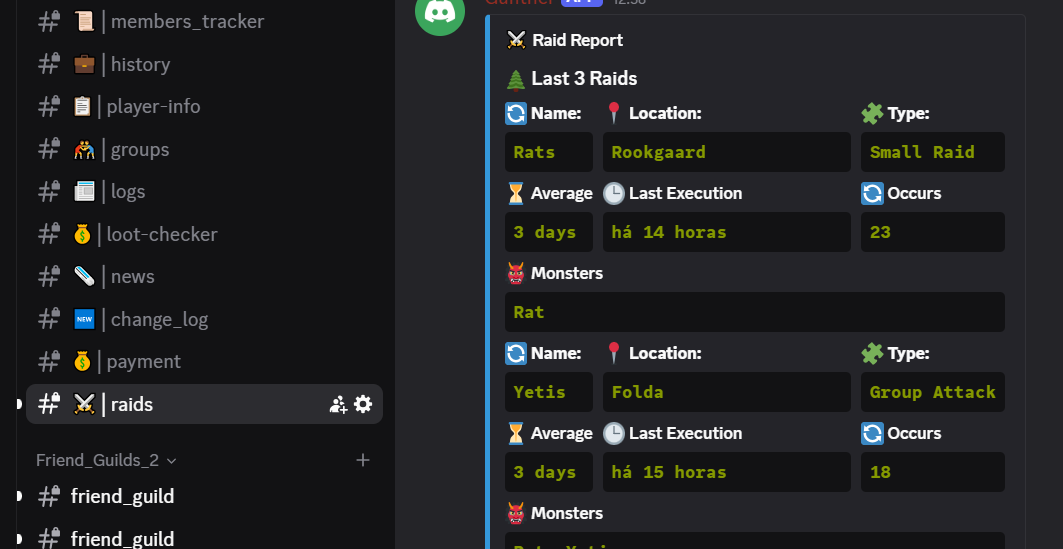
Raids summarizes the latest events with name, location, type, average interval, last execution and occurrence count.
Calculators (EXP, Magic Level, Stats)
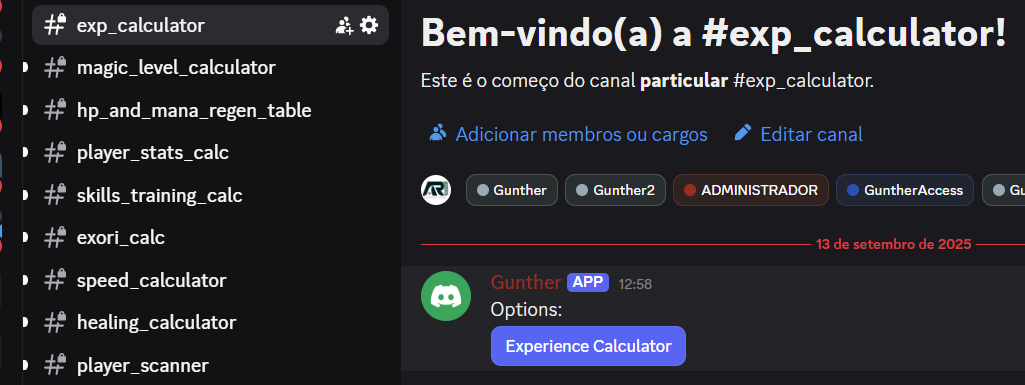
Experience Calculator estimates the required experience from current level, progress percentage and target level.
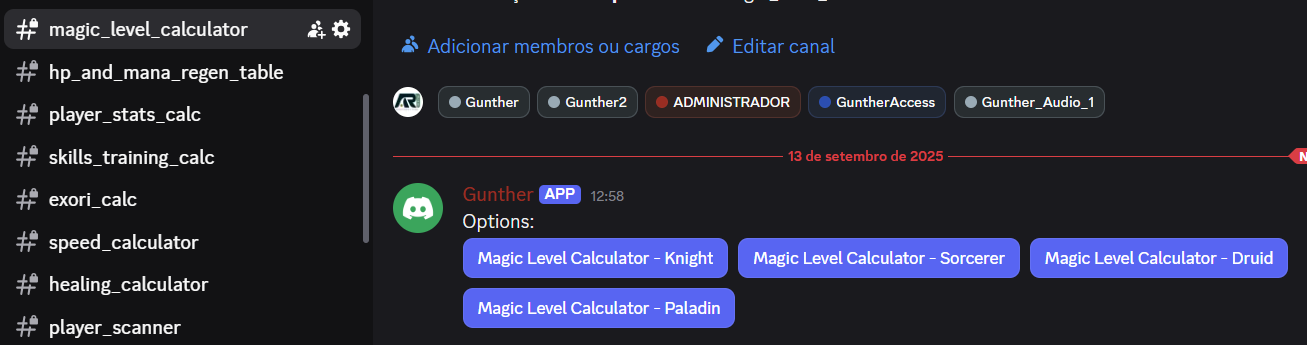
Magic Level Calculator supports each vocation and uses current magic level, progress, target and promotion status.
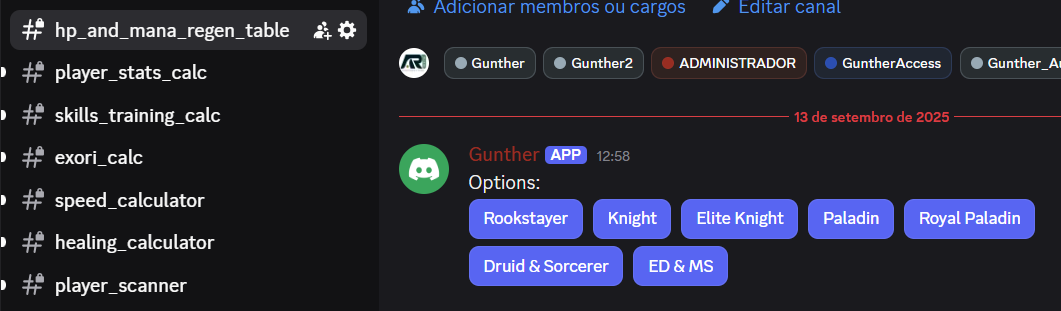
HP and Mana Regeneration calculates recovery by vocation, duration and optional regeneration items.
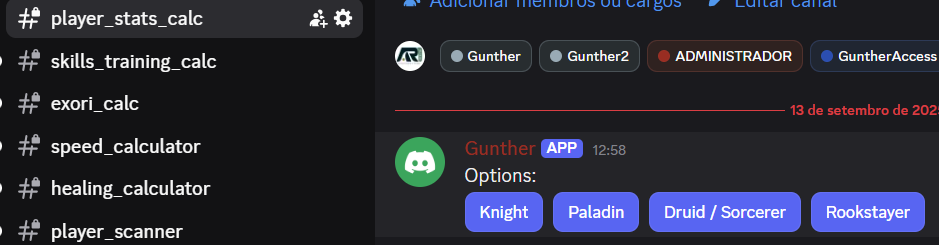
Player Stats Calculator estimates character attributes from vocation, current level and the level at which the character left Rookgaard.
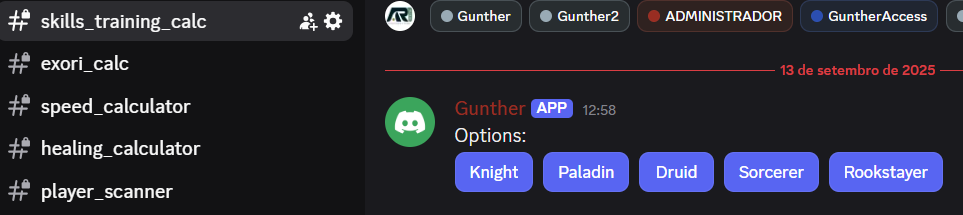
Skills Training Calculator estimates training for fist, melee, distance, shielding and fishing according to vocation.
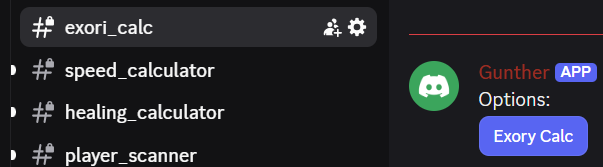
Channel exori_calc: To apply an exori calc, it will ask for level, button 'Exori Calc' will show a popup asking for level
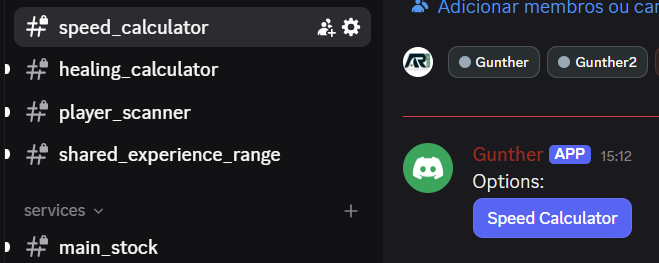
Channel speed_calculator: To calculate the speed, and it has the command button 'Speed Calculator', it will ask for 'Input Level', 'Yes to Time Ring', 'Yes to Boots of Haste'
Healing Calculator estimates healing values for fluids, runes and spells using level and magic level.
Channel Shared Experience Range: It will ask the input level and show the experience range

Advanced Trackers (Scan, Block, Banned)
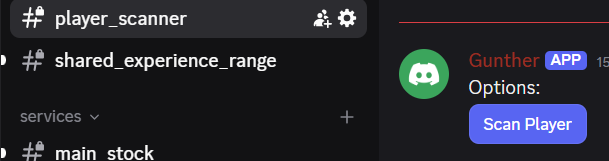
Player Scanner analyzes activity signals from the selected world to identify possible links between characters. Results are indicators, may contain false positives and should be reviewed before guild decisions.
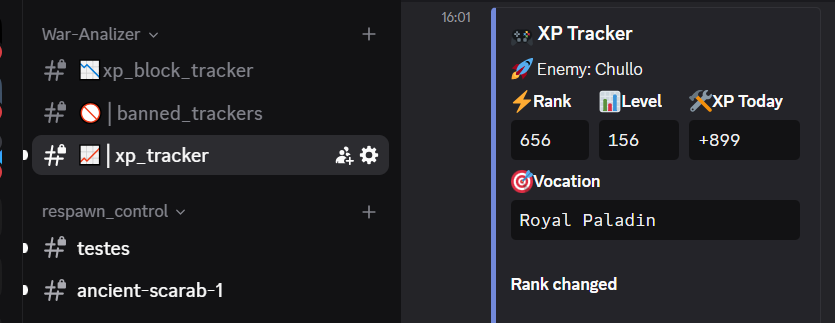
Channel xp_block_tracker: It will monitor de enemies defined with the bot, you can add or remove players in this list
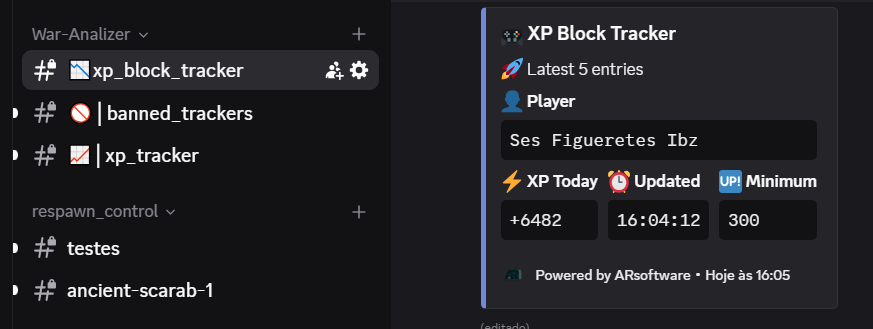
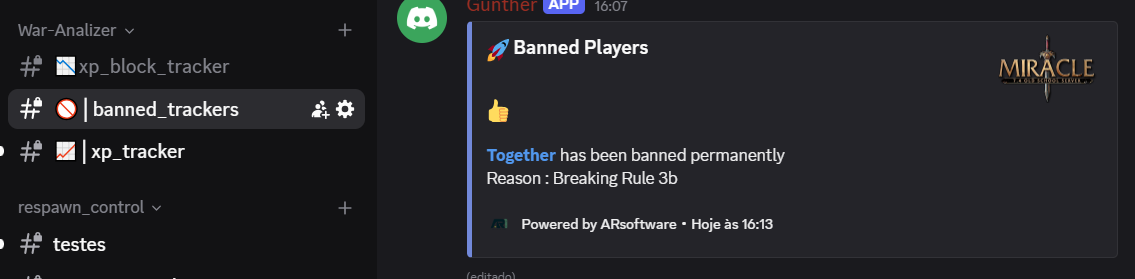
Channel banned trackers: It will show the players that got banned, the list is from enemies and friends defined in the bot
Channel xp_tracker: It will show the XP changes and the change in experience of the enemies listed in the bot